Pads hold text you wrote. The other two pane types on the boards overlay hold something running: a terminal with a real shell in it, and a browser showing a live page. Both are built in — there’s nothing to install.
Terminal panes
Open the overlay, pick Terminal in the toolbar’s app picker, and click New terminal. A shell starts immediately and you can type into it like any terminal.
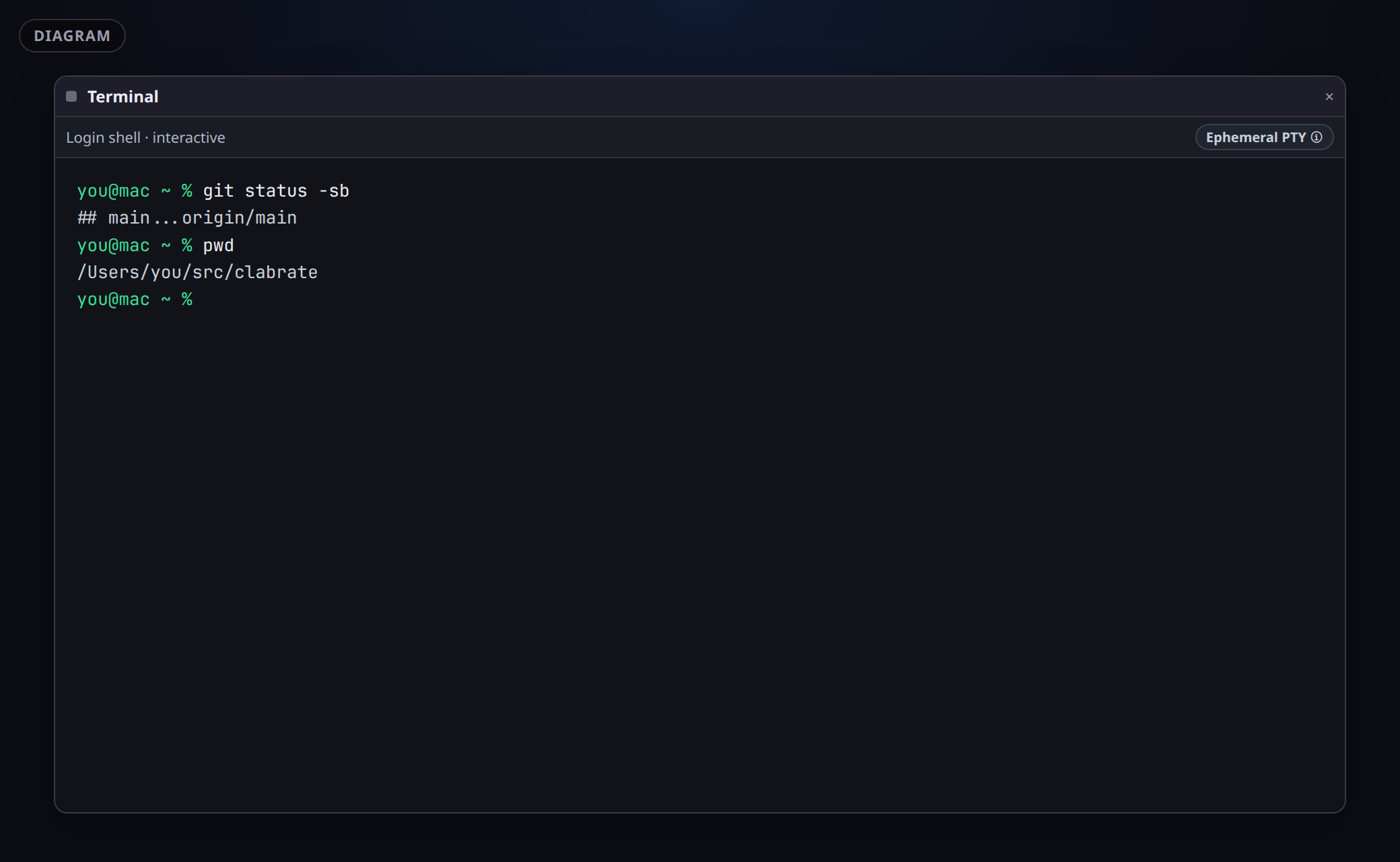 Screenshot pending: overlay-terminal.png
It opens your shell
The pane starts the login shell configured for your macOS account, as a login shell — so your own config, aliases and PATH are there. That includes shells installed by Homebrew.
This was wrong before version 0.6.2: the pane always opened the system /bin/zsh, so anyone whose account shell was a Homebrew zsh landed in Apple’s one with none of their setup and had to type zsh to get their own. If your configured shell is missing or isn’t runnable, the pane falls back to /bin/zsh rather than failing.
The pane’s shell is disposable
A strip at the top of the pane carries an Ephemeral PTY ⓘ control. It says what it means: the shell process in a terminal pane exists only while the pane is on screen. Closing the pane, hiding the overlay, switching boards, or quitting Clabrate all end that shell. Bring the pane back and you get a fresh login shell.
That’s deliberate — Clabrate isn’t trying to be a terminal multiplexer. If you want something to survive, run something that owns its own sessions inside the pane: tmux, or an agent runner. Those keep running when Clabrate’s client goes away, because they aren’t Clabrate’s processes.
The explanation collapses with Got it once you’ve read it, and the Ephemeral PTY control brings it back any time.
Shell, Herdr, tmux
If you have tmux or Herdr installed, the pane’s top strip offers Open tmux and Open Herdr UI — one click swaps the pane’s client to that program. Clabrate remembers an explicit choice and relaunches the same client when the pane comes back; New shell and Start fresh shell clear that and go back to a plain login shell.
Commands you type yourself are never inspected and never change what the pane relaunches as. Typing tmux into the shell is just a command; only the buttons set a remembered client.
Beside New terminal there’s a More terminals menu. With Herdr installed it offers:
- New Herdr terminal — a pane that opens straight into Herdr, the same as Open Herdr UI on a fresh shell.
- Add an existing Herdr pane… — pick one of your running Herdr terminals and put it on the board. It opens read-only; Take control in the pane lets you type into it.
Without Herdr, the menu has one entry, Set up Herdr…, which walks you through installing it. Once Herdr is installed, that entry goes away.
Coding agents in Herdr
When the assistant starts a coding agent (claude, codex and so on) and Herdr is running, the agent runs in Herdr, and Clabrate can tell what it’s doing: working, waiting for you, or done. The agent is also told to start any helper agents it needs as their own Herdr panes, opened in its own tab (with herdr pane split --current --direction right), so you can see them.
- It tells you when it’s finished. Give an agent a task and carry on with something else. When the agent finishes, or gets stuck waiting for you (a permission prompt, usually), the assistant pops up on its own to say so. It never talks over you: if you’re dictating or mid-answer, it waits. In a hands-free conversation it just tells you out loud, between exchanges. Turn it off with Settings → Assistant → Tell me when agents finish.
- It can read an agent that’s still working. Ask what an agent is doing and the assistant reads the agent’s current screen, whether the agent is busy or idle. If it needs more than the screen it asks for the agent’s earlier output. Herdr can’t give that while a busy agent is drawing a full-screen display, so the assistant then tells you it’s showing the current screen only. Asking for earlier output from an idle full-screen agent makes Herdr scroll that agent’s display to collect it.
- You can interrupt an agent or queue a follow-up. Say “interrupt Harry” and the assistant presses that agent’s own interrupt key once (Escape for claude, codex and agy; Ctrl-C for grok), then you can give it a new instruction. It is told to do this only when you ask (there is no confirmation card yet), and on Herdr the key is pressed only while the agent is working. A message you send while an agent is working is typed in straight away; what happens next is up to the agent — going by each agent’s own documentation, claude, grok and agy queue it for after the current turn and codex treats it as a steer — and the assistant says so. If an agent exits at the very moment it’s interrupted, the single key press can land in whatever is left in its pane; it is one key, never text.
- It can see your own agents too. Ask “what are my agents doing?” and the assistant can read the agents you started yourself in Herdr, not just its own.
- It can message its agents’ helpers. A helper an agent opens in its own tab can be sent messages without asking you, while Clabrate can reach Herdr’s socket. The assistant can’t interrupt or stop a helper.
- It won’t type into yours unless you say so. Typing into someone’s Claude session could answer a permission prompt, so for your own agents the assistant asks first. A card appears — Let the assistant control this Herdr agent? — and only Allow lets it send to that agent or interrupt it. That lasts until Herdr restarts, that pane closes, or a different agent runs in it. Stopping your agent stays yours. Allowing it covers the agent, not the terminal: once that agent exits, the assistant’s messages to that pane are refused.
- When an agent exits, nothing is left to type into. The assistant starts each agent in place of the pane’s shell, so no shell prompt is left underneath it. When the agent exits its pane stays, in Herdr and in tmux, so you can still read what it printed. The assistant reports it as exited, nothing typed into that pane runs, and asking the assistant to stop the agent closes the pane.
- Agents start in sh, bash or zsh panes. If your terminal’s shell is something else (fish, for example), the assistant tells you so instead of starting an agent there. An agent running in tmux also can’t be started in a project folder whose path contains
#or ends in;; the assistant tells you that too.
Agents running in tmux instead of Herdr work, but Clabrate can only tell whether they’re still running, not whether they’ve finished. So in tmux the assistant can’t tell you whether a message went in mid-task, and an interrupt is pressed without knowing whether the agent was busy.
Letting the assistant use a terminal
The assistant can list, open, read from and close terminal panes — but only if you install the Terminals add-on from Settings → Add-ons and grant it. It asks for two things in plain English:
| Permission | What it lets the assistant do |
|---|---|
| Read your terminals | Read what’s on screen in Clabrate’s terminal panes, including recent command output |
| Open and close terminals | Open new terminal panes in Clabrate, and close them again |
The assistant never types into a terminal. It can open an empty one for you to use, and it can read what a terminal shows, but it cannot run a command in one. There is no setting that changes this. (Before version 0.8.1 there was a Drive its own terminals switch; it’s gone.)
When something needs running or finding — “run the tests”, “where is that file?” — the assistant starts a coding agent and asks it. That needs the separate AI coding agents permission in Settings → Add-ons, which is off until you turn it on. Take it seriously: with it on, the assistant sends agents instructions without asking you each time, and an agent can run commands and change files on your Mac with whatever permissions you’ve set up for that agent. Without it, the assistant tells you the command so you can run it yourself.
The assistant talks to an agent, never to a shell. Before each message Clabrate checks that the agent is still what’s running in its pane. When Clabrate types the message itself, it checks again just before pressing Enter; when Herdr delivers the message, Clabrate checks once, just before handing it over. If the agent has exited, or something else has taken over its pane, the message is refused and not sent. In tmux that includes an agent that is still running but has opened a shell of its own: messages are refused until the agent has its terminal back. (A tmux agent started before version 0.8.1 still has a shell underneath it; stop it and start it again to get this check in full.)
Revoke either permission at any time.
Note: The Terminals card is marked Controls your Mac because it opens and closes terminal panes. Its individual permissions are marked Local — stays on your Mac, which is also true: nothing is sent anywhere. They’re answering different questions — where data goes, and what the tool can do.
Note: Terminal panes turn off the screen-reader mode in their renderer so that fast typing is delivered correctly. VoiceOver still names the pane, but it won’t read shell output line by line. This is a known tradeoff, not a bug — a toggle to prefer announcements over typing fidelity is still open.
Browser panes
Pick Browser in the app picker and click New browser. The pane’s title bar has a URL field: type an address, press Enter, and the page loads in the pane. It’s a real browser view, not a screenshot — the page keeps running while you work elsewhere.
The pane remembers its URL, so it comes back to the same page. You can leave the scheme off — example.com is enough.
That URL field is the whole of the navigation chrome: there are no Back, Forward or Reload buttons, and a browser pane can’t be renamed (the URL field occupies the title bar, so the small label at its left is just a drag grip).
Drag the tab in the bottom-right corner to resize it. (Before 0.6.2 that grip could be unreachable on a pane you hadn’t focused; it isn’t now.)
Marking a page up
The pencil button in a browser pane’s title bar freezes the page to a still and hands you a small markup toolbar: arrow, freehand marker, text, and a sticky note, in a choice of colours, with Undo.
Done flattens the still and your marks into one full-resolution image and copies it to the clipboard; the pane goes back to live browsing. Cancel throws the markup away. There’s no saved markup layer — it’s a one-shot export, for pasting a marked-up screenshot into a message or an issue.
The camera button beside it copies the pane as an image without the markup step.
The Secure Keyboard Entry banner
Sign in to a site in a browser pane and you may see a banner appear at the top of the canvas:
🔒 Secure Keyboard Entry is on (a password field in a browser pane). Escape and auto-hide are paused until you close or leave that page.
Here’s what’s happening. When a password field is focused, macOS turns on Secure Keyboard Entry — a system-wide lockout that stops any app from observing keystrokes. That’s protecting your password, and it’s working correctly. But it also means Clabrate can’t see Esc, so the canvas’s usual keyboard exit is temporarily gone.
Normally Clabrate refuses to leave a screen-covering surface up without an escape hatch, and hides the overlay (see the overlay page). Doing that here would be absurd — the canvas would vanish out from under the login you’re in the middle of. So instead the canvas stays, the banner explains why Esc stopped working, and it gives you a mouse-clickable way out: Close browser pane, which closes the browser panes on the board. With the password field gone, macOS releases the lock and Esc works again.
Moving off the password field clears it too. The banner disappears on its own.
Common questions
My aliases / PATH aren’t there. Since 0.6.2 the pane opens your account’s login shell, so they should be. If you’re on an older build, update.
I lost my shell when I hid the overlay. That’s the ephemeral design — see above. Run tmux (or the Open tmux button) inside the pane for something that survives.
The overlay’s ⌘⇧F or Esc doesn’t fire while I’m in a terminal or browser pane. Those panes take the keystroke first, exactly as a real terminal or browser would. Click an empty part of the canvas, then press it.
Can the assistant browse for me in a browser pane? No. It can move and arrange browser panes, and close them, but it can’t create one or send it to a URL — and it can’t read the page. The reading tool exists for terminals only.
The assistant opened a terminal but won’t run anything in it. By design: the assistant never types into a terminal. Turn on AI coding agents in Settings → Add-ons and ask again — it will start an agent and ask it to do the work. Or run the command yourself; the assistant can tell you what it is.
The assistant says nothing was typed into my agent. The agent isn’t what’s running in its pane any more — it has exited, it hasn’t finished starting, or another program has the terminal. The assistant only ever sends to the agent itself. Ask it to check the agent’s status, or to stop it and start a new one.
Should I sign in to things inside a browser pane? You can — the Secure Keyboard Entry banner above exists precisely because that flow now works. Sessions live in Clabrate’s own web view.