Look at the Clabrate menu-bar mark: • | •. That right-hand dot is Spot. Turn him on and he’ll occasionally drop out of the menu bar, splash into ink, and go for a wander across your screen — then leap back up and become the logo again.
He is off by default.
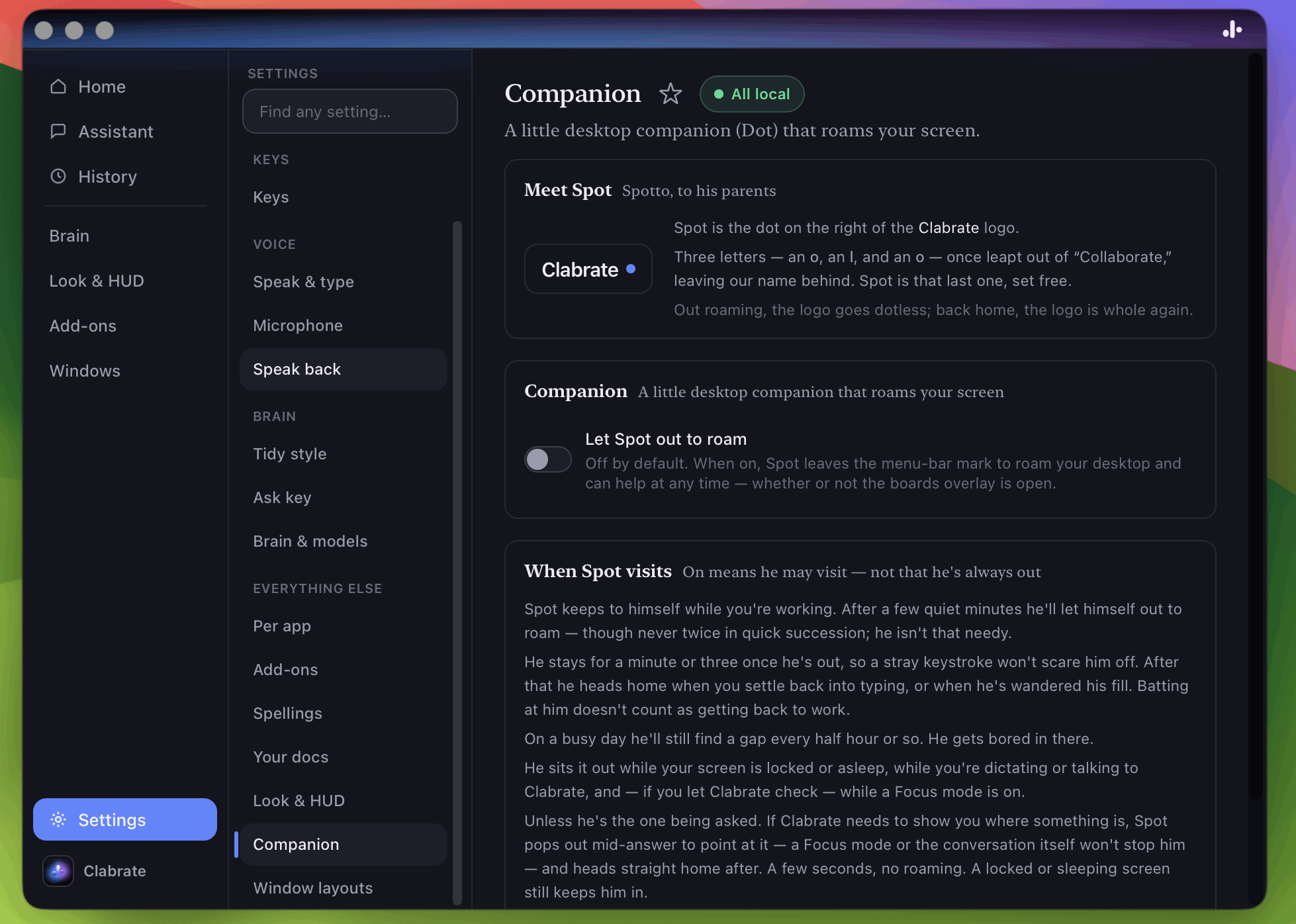 Screenshot pending: companion-settings.png
Letting him out
Go to Settings → Companion and turn on Let Spot out to roam.
That switch means he may visit — not that he’s always out. To bring him out right now, or to send him back, use the menu-bar icon → Overlay → Let Spot out now / Send Spot home.
You’ll know he’s out because the menu-bar mark is visibly missing its right dot. When he goes home, the dot comes back.
Ask the assistant
Allow Overlay control for your assistant model in Settings → Add-ons, then say “let Spot out”, “bring Spot out” or “send Spot home”. You can also ask it to check Spot’s status. It can report whether Spot is enabled, home, out or returning, whether his window is visible, and whether Secure Keyboard Entry or a locked or sleeping display is blocking a summon.
This controls a visit, rather than opening the boards overlay or changing the roaming setting. Spot still needs Let Spot out to roam enabled, and the tool won’t silently turn that on. Tricks remain separate: unlock them, then use Collection → Ask Spot.
When he visits
Spot keeps to himself while you’re working. After a few quiet minutes he’ll let himself out — though never twice in quick succession; he isn’t that needy.
He stays for a minute or three once he’s out, so a stray keystroke won’t scare him off. After that he heads home when you settle back into typing, or when he’s wandered his fill. Batting at him with the cursor doesn’t count as getting back to work.
On a busy day he’ll still find a gap every half hour or so. He gets bored in there.
He sits it out entirely while:
- your screen is locked or asleep,
- you’re dictating or talking to Clabrate, and
- a Focus mode is on — if you’ve let Clabrate check.
When he ignores all that
If Clabrate needs to show you where something is, Spot pops out mid-answer to point at it. A Focus mode or the conversation itself won’t stop him, and he heads straight home afterwards — a few seconds, no roaming. A locked or sleeping screen still keeps him in.
This is the part that isn’t decoration: “it’s that button” is a hard sentence to write and an easy thing to point at.
When he’s out, the boards overlay is his room — and opening it is enough to bring him out. A Focus mode or a dictation won’t shoo him out of it, and he walks home when you close it. With the setting off he stays home: the overlay is still just an overlay.
What he can see
Spot needs to know where your windows are, so he can perch on their edges and squeeze through the gaps between them. That comes from window geometry — positions and sizes — not from their contents. He doesn’t read your screen, and nothing about your windows leaves your Mac.
Pointing at a control uses macOS Accessibility, the same permission Clabrate already needs to type text into other apps. See Privacy & your data.
What he finds
As you dictate, Spot turns up Inkwells — sealed pots of ink holding a colour, a look, or a trick he can do. They’re earned rather than bought, they keep until you want them, and none of it changes how Clabrate works. See Your Collection & Inkwells.
Sending him away
Turn Let Spot out to roam off in Settings → Companion, and he stays in the menu bar as the logo. Nothing else changes.
Common questions
He never comes out. For spontaneous visits he waits for a quiet gap; Focus and dictation can keep him home. Menu-bar icon → Overlay → Let Spot out now bypasses that schedule, including Focus and a busy assistant or dictation turn. It still needs Spot enabled and a display that’s awake and unlocked.
I clicked Let Spot out now and nothing appeared. Secure Keyboard Entry may be active even without a fingerprint prompt showing: a password field, password manager or security prompt can hold it. Finish or dismiss the prompt, then retry. Ask the assistant to check Spot’s status. If his window is reported visible but you still can’t see him, or repeated summons fail with no reported blocker, export a support log from Settings → Developer so the window or drawing failure can be investigated.
The logo is missing a dot and there’s no creature. That pairing shouldn’t happen — the icon only drops its dot once Spot has somewhere to land. If you see it persist, it’s a bug worth reporting.
Does he slow anything down? He’s a small WebGL surface with no external dependencies, and he sits out locked and sleeping screens entirely.
Can I have him without the pointing? Not separately today — the roaming toggle governs both.